# Train and sim-test your first policy on Laika
> Train a walking policy for Laika on your own computer, then read how it did in simulation. About 15 minutes.
Prompt for your AI: Read https://mousemouse.ai/docs/first-policy.md first. Walk me through training and sim-testing my first policy on Laika. Run the terminal steps for me, and tell me what to click in the browser. Ask me before anything that costs money or moves a robot.
You will train a walking policy for Laika, Lucen's 12-joint biped, on your own
computer. Then you will read how it did in simulation. It takes about 15
minutes, and it costs nothing.
Every command here is tested. Where a command names this hub, it shows this
hub's address: **https://api.mousemouse.ai**.
## Before you start
- **An account on this hub.** Sign up with the button at the top right, and
choose your handle, your name in every address. This page writes it as `you`.
- **A Mac or Linux computer with a terminal.** The installer uses `uv` when
you have it, else Python 3.12 or later.
- **About 15 minutes.** Installing takes a minute, and a quick run trains in
two or three.
## What you'll learn
- How to start a training run from the browser.
- How a runner on your computer trains it, for free.
- How to follow a run's curves and checkpoints.
- How to read a sim test: which tests pass, and why the others fail.
## 1 · Open Laika
Open [Laika's page](/lucen/laika) and press **Train a policy**.
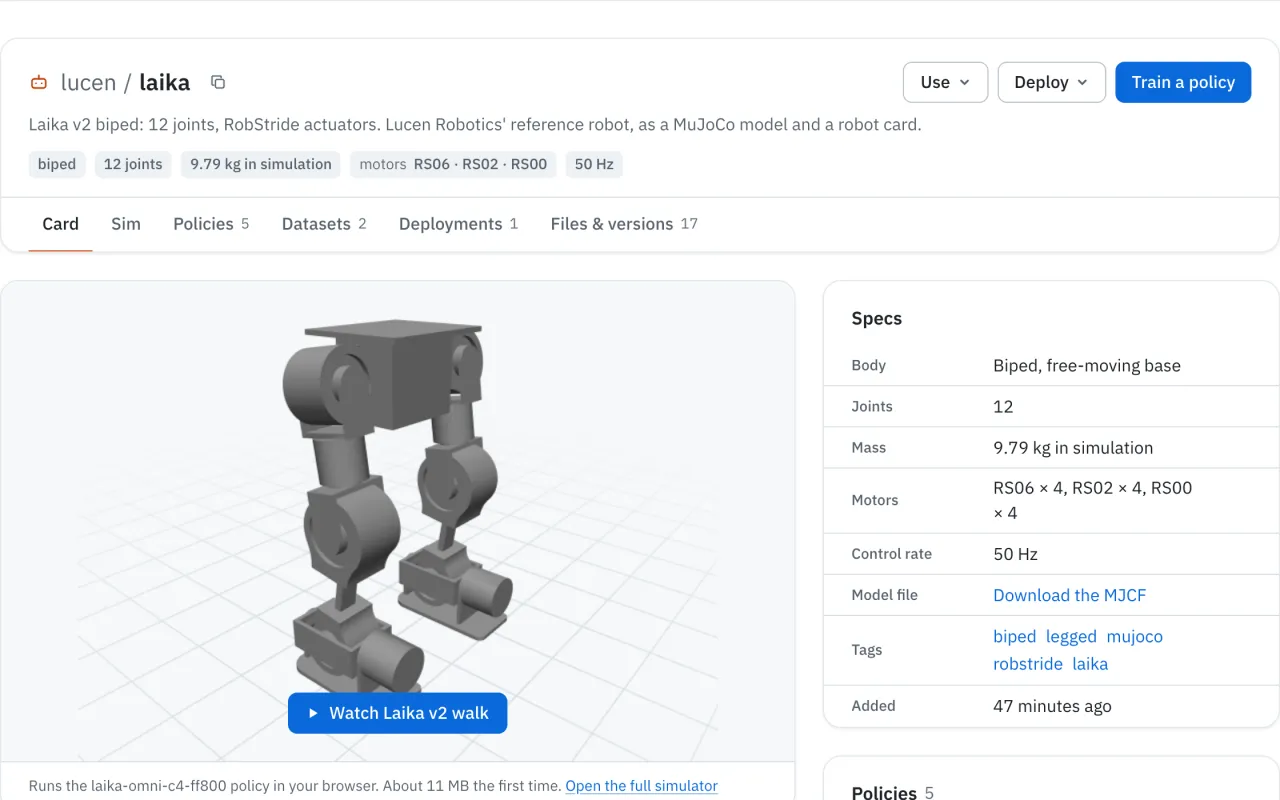
*Laika's page. Train a policy is at the top right.*
**You'll see** the training form, titled "Train a policy for laika".
Just signed up? The welcome screen's Try Laika in sim
The welcome screen after sign-up offers **Try Laika in sim**. It copies Laika,
its real logs and a trained walking policy into your account. Then **Run sim
test** scores that policy in simulation, free on Lucen cloud where this hub
offers it. That tests a policy someone else trained. This tutorial trains your
own, from Laika's page.
## 2 · Start a quick run
Keep **MuJoCo PPO**. Under **How long**, choose **Quick test**. Under **Where it
runs**, choose **My machine**. Leave **Test every checkpoint in simulation**
ticked, and press **Start training**.
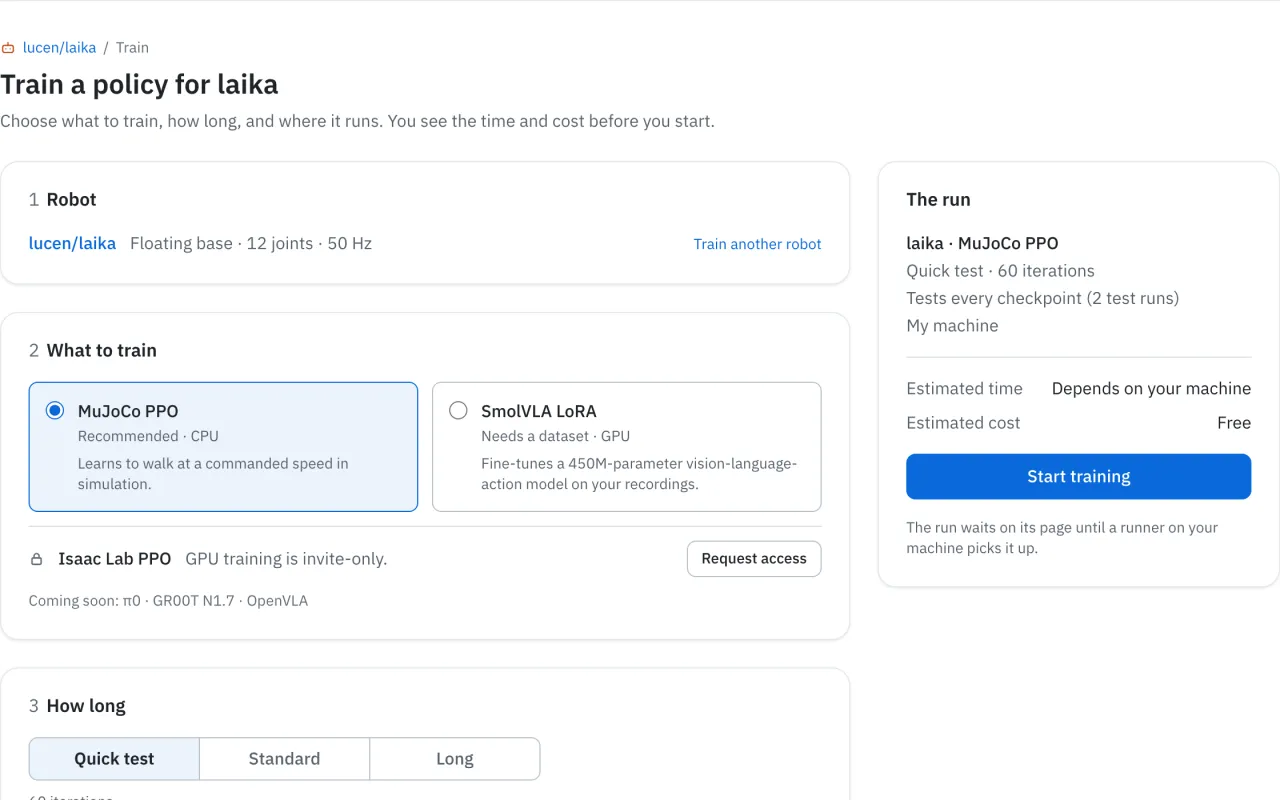
*A quick test trains for 60 iterations. The summary on the right says where the run goes and what it costs.*
**You'll see** the run's page. It says **Queued** and **Waiting for a runner**,
with four lines to paste.
If the form offers Lucen cloud CPU
Some hubs offer **Lucen cloud CPU** under **Where it runs**. Choose it to train
without installing anything. It is free within a monthly allowance, and the
summary shows the estimated cost before you start. Then skip to step 6 once the
run says **Succeeded**.
## 3 · Install the CLI
A runner is a program on your computer that trains your queued runs. It comes
with the `lucen` CLI. Open a terminal and run:
```bash
curl -fsSL https://api.mousemouse.ai/install.sh | sh -s -- 'cli[rl]'
export PATH="$HOME/.local/bin:$PATH"
```
**You'll see** the installer finish with:
```
Installed 1 executable: lucen
lucen-install: lucen and lucen-device now talk to https://api.mousemouse.ai (/Users/you/.config/lucen/credentials holds the URL, no key)
lucen-install: add /Users/you/.local/bin to your PATH: export PATH="/Users/you/.local/bin:$PATH"
lucen-install: next: make a key under Agents and keys on the hub, then run: lucen auth login && lucen quickstart
```
The second line puts `lucen` on your `PATH` for this terminal.
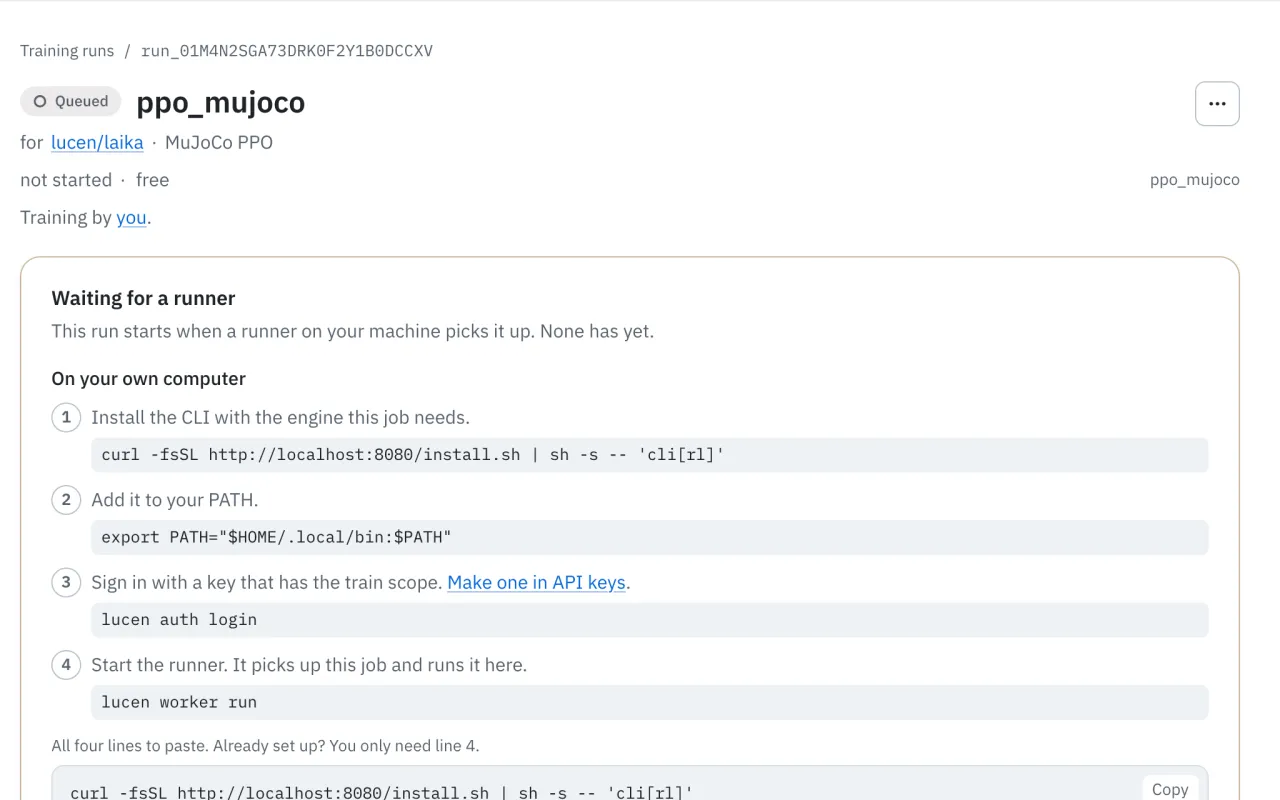
*The run's page prints the same lines with this hub's address, in case you prefer to copy them there.*
What the installer does
The installer fetches the `lucen` CLI from this hub, with MuJoCo and ONNX
Runtime for training and sim tests. The packages are not on PyPI, and a package
named `lucen` there is not ours. It points the CLI at this hub. It cannot change
the `PATH` of the shell it was piped into, which is why the second line is
there. Add that line to your shell's profile to keep it.
## 4 · Sign in with a key
The runner needs a key to act for you. Open [API keys](/settings/keys), name
the key, choose the **train** scope and press **Create key**. Copy the key now:
the page shows it once.
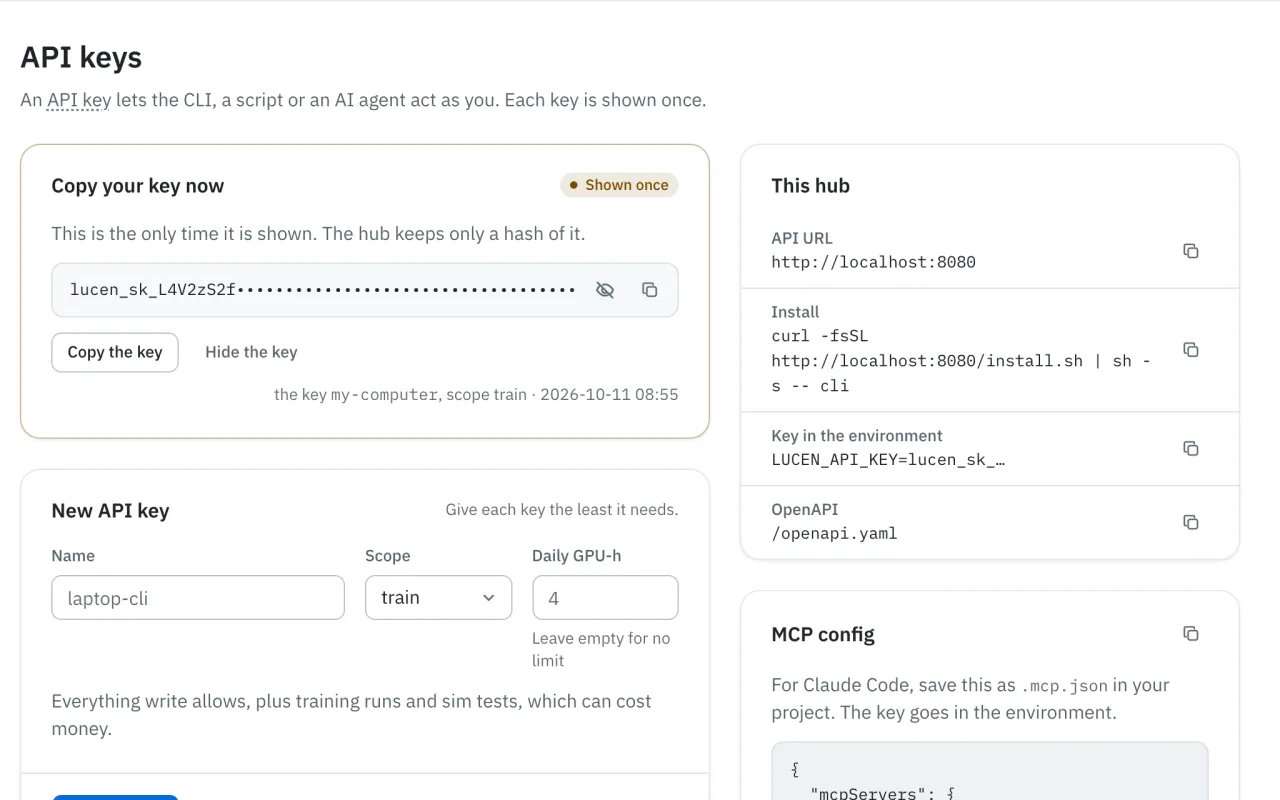
*The new key, shown once. The hub keeps only a hash of it.*
Then sign in, and paste the key when it asks:
```bash
lucen auth login
```
**You'll see:**
```
API key:
Signed in as you (scopes: read, write, train) at https://api.mousemouse.ai
Saved to /Users/you/.config/lucen/credentials (mode 0600)
```
Why a key, and what it can do
Only a signed-in person can create a key, so a key that leaks cannot create
another. A **train** key can start runs and sim tests and spend money on Lucen
cloud. It cannot approve a policy onto a robot: only a signed-in person can.
The CLI keeps the key in a file only you can read. [API keys and
scopes](/docs/api-keys) lists what each scope allows.
## 5 · Start the runner
```bash
lucen worker run
```
The runner finds your queued run, trains it, and tests its checkpoints in
simulation as they are saved. Leave it running.
**You'll see** something like this, shortened:
```
lucen worker `mac`: templates ppo_mujoco, smolvla_lora, stub_ppo, stub_serve_skill, stub_skill; looping
Claimed run_01M4N0N9N9CJV9H5W6QFB5WX4X (ppo_mujoco) as mac
| [lucen-ppo-mujoco] 1024 envs x 24 steps x 60 iterations on 12 thread(s); dt 0.002 s x 10 = 50 Hz
| iter 1/60 return -0.510 reward/step -0.01607 std 1.004 22,437 steps/s
| iter 60/60 return -2.429 reward/step 0.00931 std 0.674 19,142 steps/s
| [lucen-ppo-mujoco] done: 1,474,560 env steps in 70.7 s; episode return -0.5097038764607732 -> -2.428927462479867
run_01M4N0N9N9CJV9H5W6QFB5WX4X: published you/ppo-mujoco-qfb5wx4x
run_01M4N0N9N9CJV9H5W6QFB5WX4X: sim test of step_60: 1 of 5 tests pass in 8.058 s (rollout_01M4N0SK53JAEFWRZKH5JYDZVG)
```
The run's page follows along. It says **Running**, draws the training curves,
and adds each checkpoint to its strip as it is saved.
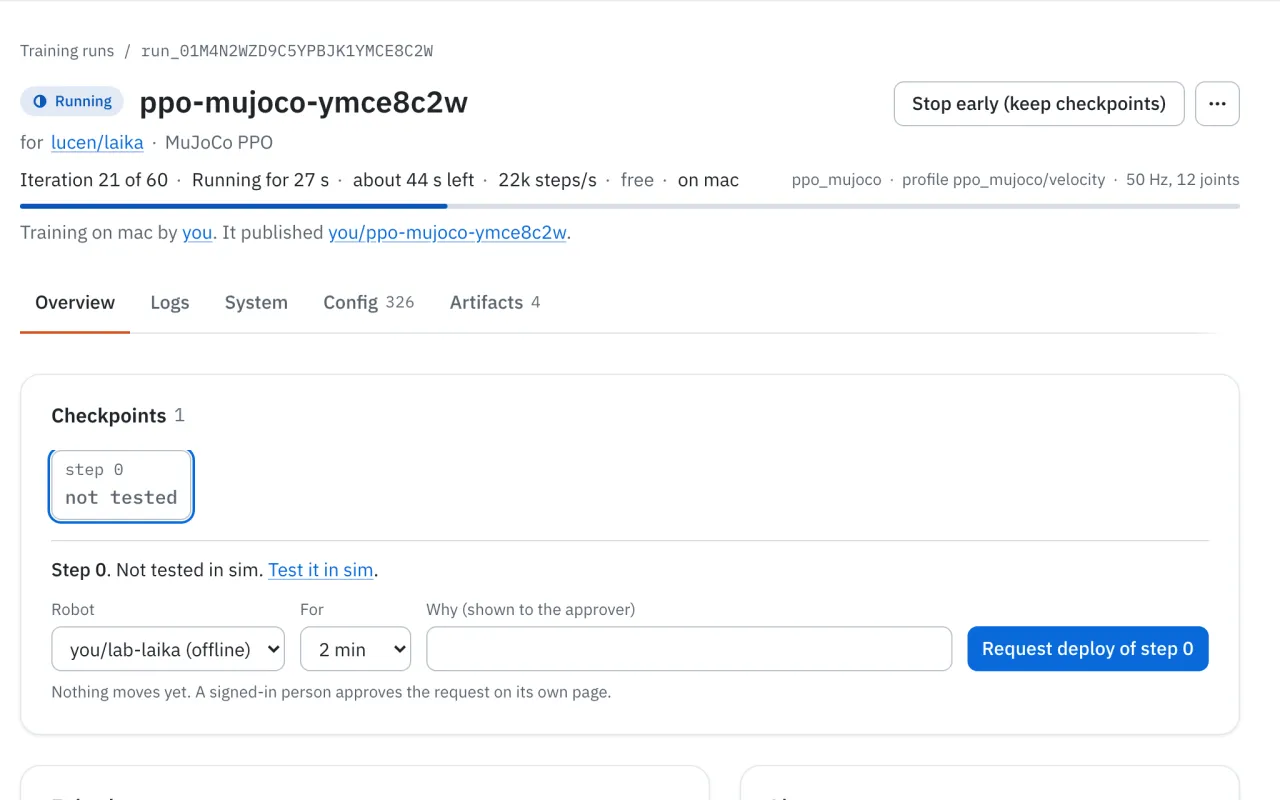
*While it trains: the progress, the time left, and each checkpoint as it is saved. The curves are further down.*
When the page says **Succeeded**, press Ctrl-C to stop the runner.
If the run does not start, or the runner stops
- The runner takes only the runs of the account whose key it holds. If it says
nothing after "looping", check that you signed in as the account that started
the run.
- If the runner stops mid-run, the hub queues the run again after five minutes
without a heartbeat. Start the runner again and it picks the run back up.
- Training on your own machine is free. It uses your CPU, and a quick run takes
about a minute and a half on a laptop.
## 6 · Read the sim test
On the run's page, each tested checkpoint shows how many tests it passed. Press
**1 of 5 tests pass** (yours may differ) to open the sim test.
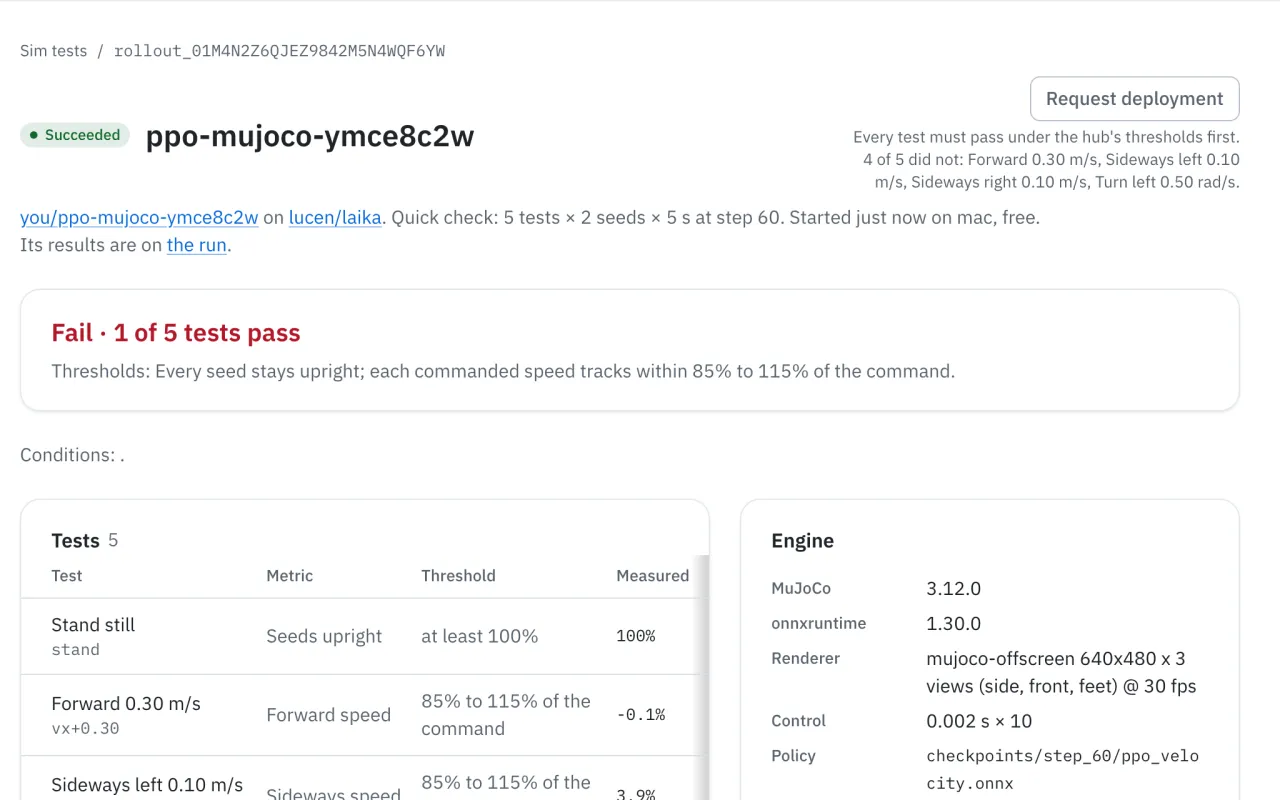
*After a quick run Laika stands still, but does not yet move at the commanded speeds.*
**You'll see** the result, then one row per test. A walking robot passes a test
when every seed stays upright and tracks its command within 15%. After a quick
run, expect **Stand still** to pass and the moving tests to fail. Sixty
iterations is not enough to learn to walk.
Why the moving tests fail, and how to make them pass
Each test commands a speed, such as forward at 0.30 m/s, and measures what
Laika does. A measured value near 0% means Laika barely moved. Train for longer
to fix it. **Long** is 1,000 iterations. That is the run in which Laika first
tracked a sideways command, about 16 minutes on a laptop. The sim test page
also lets you try other thresholds, without running anything again.
## Next steps
- **Train for longer.** Start another run with **Standard** or **Long**, the
same way.
- **Fine-tune it.** On the run's page, **Fine-tune** starts the next round from
a checkpoint that passed, with one thing changed.
- **Ask the Coach.** The [Training Coach](/coach) reads a run and suggests the
next experiment.
- **Put it on a robot.** [Deploy a policy to your robot](/docs/deploy-to-a-robot),
and read [how approvals keep your robot safe](/docs/approvals).
- **Bring your own robot.** [Add your robot](/docs/add-your-robot), then train
for it the same way.
- **Run more jobs here.** [Train on your own machine](/docs/train-on-your-machine)
covers the other runners and what each job costs.